Getting Started
This section will guide users through setting up CostSense and getting the first cost insights.
Package Overview
|- ABOUT
|- deploy/
|    |- helm/
|        |- kubernetes/
|            |- cost-sense/
|            |- cost-sense-agent/
|            |- cost-sense-datastore/
- ABOUT: File containing info about the release such as version number
- deploy: Deployment scripts
- deploy/helm/kubernetes: Charts for CostSense deployment for kubernetes
- kubernetes/cost-sense-agent: Agent charts for each cluster cost monitoring
- kubernetes/cost-sense-datastore: Cost data store charts
- kubernetes/cost-sense: Cost management module charts
Installation Steps
CostSense features can be realized through deployment on kubernetes(k8s) cluster. If there is no k8s cluster available, please refer here to setup one.
Prerequisite
- Kubernetes Clusters.
- Cost management cluster
- Cost monitored cluster
- Ingress controller in kubernetes clusters.
- Kubernetes cluster needs at least one volume provisioner
- Helm. Helm installation documentation
- Kubectl kubectl installation document
CostSense installation is two step process
- At a management cluster
- Install datastore for metric data retention
- Install cost center management and interactions modules.
- At all clusters whose cost to be calculated/analyzed, Install cost agent to fetch cost metric and push it to cost center
Install Datastore
cost-sense supports two time-series datastores for storing and querying metrics:
- Prometheus
- VictoriaMetrics
-
Option 1: Prometheus
-
Change to the directory deploy/helm/kubernetes/cost-sense-datastore charts for data store deployment.
-
Update values.yaml file with below configurations
- Enable prometheus deployment by setting "Values.prometheus.enabled" to true

-
Set
input-ingress-class-nameof "Values.prometheus.server.ingress.ingressClassName" to the ingress class name -
Set
input-metric-store-endpointof "Values.prometheus.server.ingress.hostname" to the domain name
-
Run below helm command for datastore installation
helm install datastore -n cs-store --create-namespace -f values.yaml ./ -
Verify the deployment
After the installation completes, verify that all pods are running:
kubectl get pods -n cs-store
-
-
Option 2: VictoriaMetrics
-
Change to the directory deploy/helm/kubernetes/cost-sense-datastore charts for data store deployment.
-
Update values.yaml file with below configurations
- Enable victoria metrics deployment by setting "Values.victoria-metrics-cluster.enabled" to true

-
Set
input-ingress-class-nameof "Values.victoria-metrics-cluster.vmselect.ingress.ingressClassname" and "Values.victoria-metrics-cluster.vminsert.ingress.ingressClassname" to the ingress class name -
Set
input-metric-store-endpointof "Values.victoria-metrics-cluster.vmselect.hosts.name" and "Values.victoria-metrics-cluster.vminsert.hosts.name" to the domain name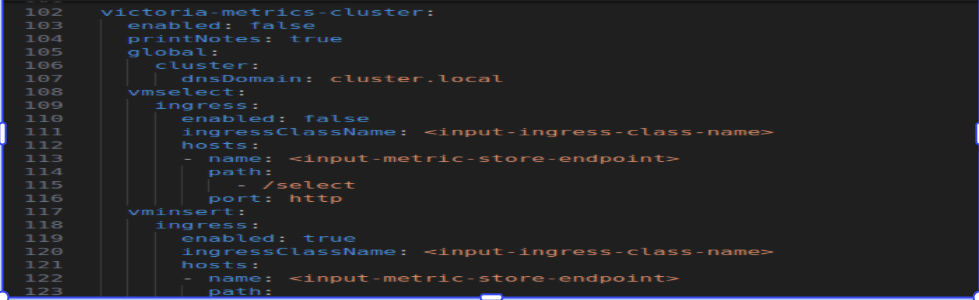
-
Set
input-storage-class-nameof "Values.victoria-metrics-cluster.vmstorage.persistentVolume.storageClassName" to the storage classname in kubernetes cluster
-
Run below helm command for datastore installation
helm install datastore -n cs-store --create-namespace -f values.yaml ./ -
Verify the deployment
After the installation completes, verify that all pods are running:
kubectl get pods -n cs-store
-
Install Manager
-
Change to the directory deploy/helm/kubernetes/cost-sense charts for manager deployment.
-
Update values.yaml file with below configurations
-
Update image registry password and set "pullSecretEnabled" to true

-
Set
input-metric-store-endpointof "Values.gateway.prometheusEndpoint" to prometheus endpoint of the cluster -
Set
input-ingress-class-nameof "Values.ingress.ingressClassName" to the ingress class name -
Set
input-gateway-host-nameof "Values.ingress.hosts" to the gateway host name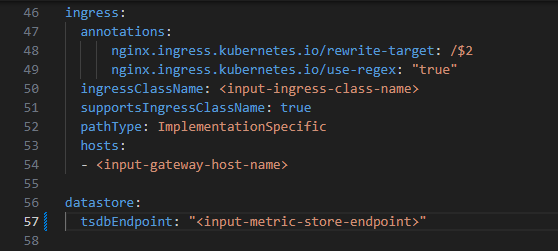
-
Run below helm command for manager installation
helm install manager -n cost-sense --create-namespace -f values.yaml ./ -
Verify the deployment
After the installation completes, verify that all pods are running:
kubectl get pods -n cost-sense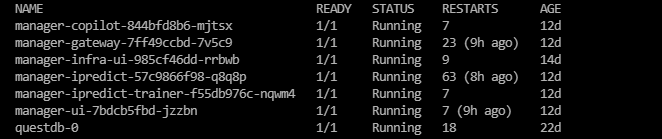
Kubernetes Agent
-
Change to the directory deploy/helm/kubernetes/cost-sense-agent charts for agent deployment.
-
Update values.yaml file with below configurations
-
Set
input-cluster-nameof "Values.agent.clusterName" to name of the cluster -
Set
input-metric-store-endpointof "Values.agent.metricAccess.endpoint" to data store endpoint of the cluster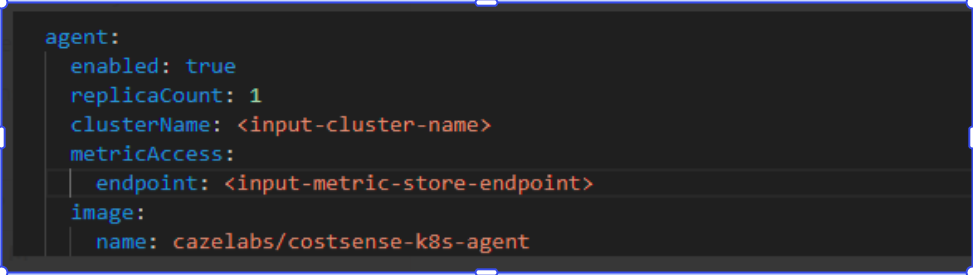
-
Set
input-metric-store-endpointof "Values.agent.prometheus.remoteWrite" to data store endpoint of the clusterEx:
Prometheus: http://"prometheus.endpoint"/api/v1/write. Change "prometheus.endpoint" to prometheus datastore access point
-
Update image registry password and set "pullSecretEnabled" to true

-
Run below helm command for CostSense agent installation
helm install cost-agent -n cs-agent --create-namespace -f values.yaml ./ -
Verify the deployment
After the installation completes, verify that all pods are running:
kubectl get pods -n cs-agent
How to Upgrade
CostSense upgrade is a two-step process:
-
At a management cluster
Upgrade Cost Center for cost metric data retention, management, and interactions. -
At all monitored clusters
Upgrade Cost Agent to fetch cost metrics and push them to the Cost Center.
Upgrade Cost Center Components
Upgrade Datastore
- Change to the directory deploy/helm/kubernetes/cost-sense-datastore charts for data store deployment.**
- Copy
values.yamlfile from the existing deployment - Run the below Helm command for datastore upgrade:
helm upgrade datastore -n cs-store --create-namespace -f values.yaml ./
Upgrade Manager
- Change to the directory deploy/helm/kubernetes/cost-sense charts for manager deployment.
- Copy
values.yamlfile from the existing deployment - Run the below Helm command for manager upgrade:
helm upgrade manager -n cost-sense --create-namespace -f values.yaml ./
Upgrade Cost Agent
Upgrade Cost Agent
- Change to the directory deploy/helm/kubernetes/cost-sense-agent charts for agent deployment.
- Copy
values.yamlfile from the existing deployed directory - Run below helm command for CostSense agent installation
helm upgrade cost-agent -n cs-agent --create-namespace -f values.yaml ./
How to Uninstall
Uninstall Datastore
helm uninstall manager -n cost-sense
kubectl delete namespace cost-sense
⚠️ Note: Deleting a namespace permanently removes all resources within that namespace.
Uninstall Manager
helm uninstall datastore -n cs-store
kubectl delete namespace -n cs-store
⚠️ Note: This deletes all resources managed under the cost-sense namespace.
Uninstall CostSense Agent
helm uninstall cost-agent -n cs-agent
kubectl delete namespace -n cs-agent
⚠️ Note: Deleting the namespace removes all components of the Cost Agent deployment.